
Parts & Layers
Oscilla supports two approaches to per-performer parts: separate score files and stacked layers within a single SVG. Both are configured in the Parts tab of the preferences dialog and stored per-browser, so each performer on a shared network can independently choose their own view.
The two approaches can be combined. A project might use separate score files for radically different parts (e.g. a conductor score and a performer score) while also using layers within each file for finer distinctions (e.g. violin I and violin II sharing a string parts score).
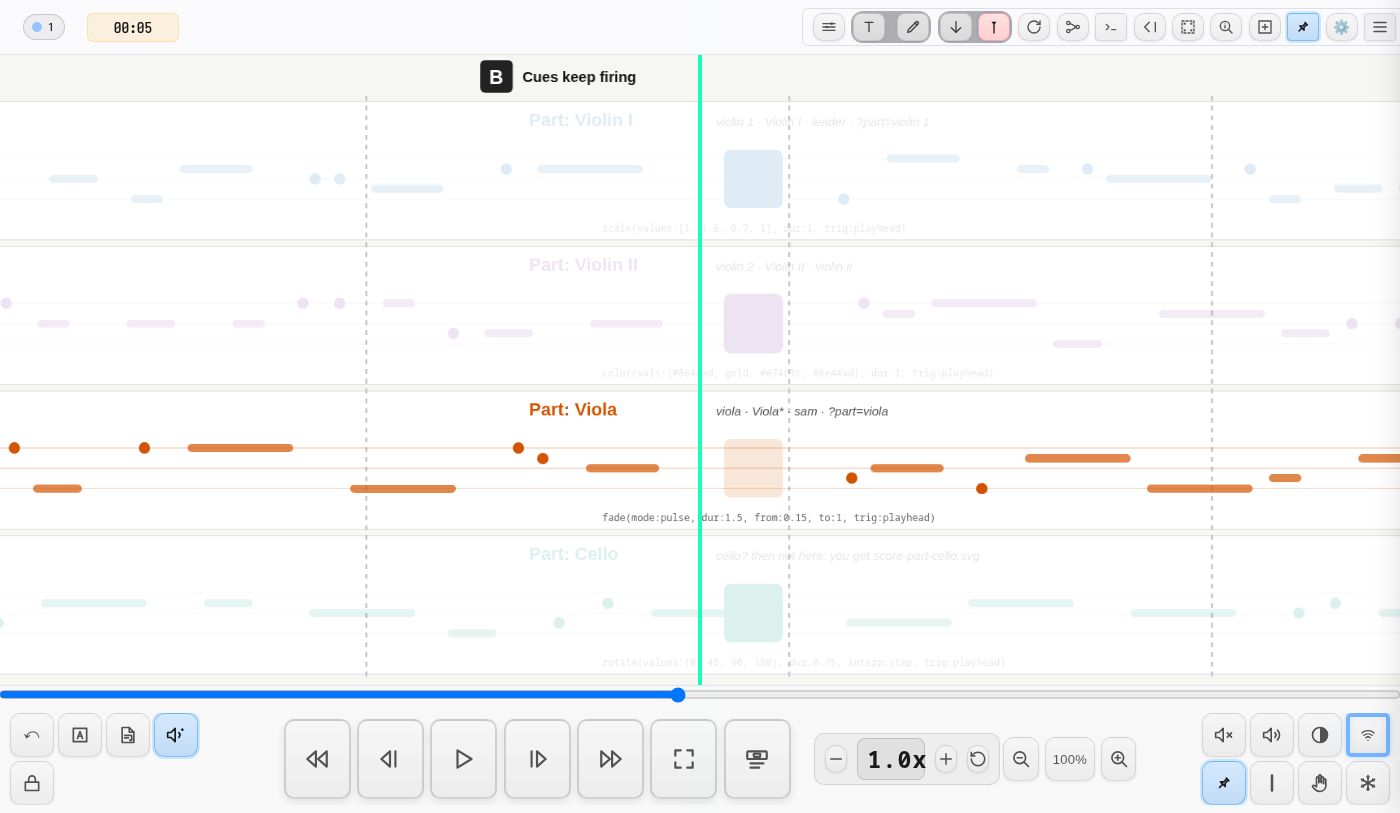
Try it: the demo demo-parts has four part layers and a cello part with a file of its own. Double-click your own dot in the client list (top left) to open Edit Your Identity and pick a role (viola, violin 2, leader, cello …): the score follows the name. To choose a part by hand, use Preferences → Parts.
Approach 1: Separate Score Files
Each part is authored as an independent scrolling SVG. All files live in the project root alongside score.svg:
myProject/
├── score.svg                  # full score (always present)
├── score-part-violin.svg      # violin part
├── score-part-viola.svg       # viola part
├── score-part-cello.svg       # cello part
├── score-conductor.svg        # conductor view
├── preferences.json
└── pages/
Naming Convention
Files must match the pattern score*.svg:
score.svg— the main or full score (always listed first)score-part-violin.svg— a part scorescore-conductor.svg— a conductor scorescore-electronics.svg— an electronics part
The prefix score is required. Everything after it becomes the display label in the preferences dialog. Hyphens become spaces: score-part-violin.svg appears as part violin.
When to Use Separate Files
Separate files are appropriate when parts differ substantially in content, layout, or length:
- different notation for different instruments
- a conductor score with rehearsal annotations that players should not see
- an electronics part showing control data rather than musical notation
- parts at different zoom levels or page sizes
- simplified parts for less experienced performers
Authoring
Each file is a standard Inkscape SVG. All the usual cue syntax works identically — cues are embedded in element IDs just as in score.svg. The scrolling playhead, transport, timing, and synchronisation all work the same regardless of which score file is loaded.
One important consideration: if you use cue IDs that reference specific elements (e.g. nav(scroll@A)), the rehearsal marks referenced must exist in the currently loaded score file for that performer. If mark A exists in score.svg but not in score-part-violin.svg, navigation cues targeting it will not work for a performer who has selected the violin part.
Performer Selection
Each performer selects their score file in Preferences > Parts > Score. The selection is stored in the browser's localStorage and takes effect on the next project load. This means each performer on a different device (or browser) can independently choose which score file they see, while all remaining synchronised via the shared transport.
Approach 2: Stacked Layers
A single score.svg contains all parts as Inkscape layers. Each performer can highlight their own layer and dim the others.
Creating Layers in Inkscape
- Open
score.svgin Inkscape - Open the Layers dialog: Layer > Layers... (or Shift+Ctrl+L)
- Create a layer for each part, naming it with "part" in the name
- Draw each instrument's notation on its own layer
- Put shared elements (barlines, rehearsal marks, time signatures, background) on a layer without "part" in the name
- Save
Each layer corresponds to a <g> element in the SVG with Inkscape's layer attributes:
<g inkscape:groupmode="layer"
   inkscape:label="Part: Violin"
   id="layer1">
  <!-- score content for violin -->
</g>
Naming Convention
Oscilla scans Inkscape layers (groups with inkscape:groupmode="layer") and includes only those whose label contains the word part (case-insensitive). Layers without "part" in their name are never filtered, making them suitable for shared notation, grids, or background elements.
This means names like "Part 1 Violin", "viola part", or "PART: Electronics" are all detected, while layers named "Background", "Grid", or "Shared" are excluded and remain fully visible regardless of the performer's selection.
| Layer Name | Filterable? | Why |
|---|---|---|
| part-violin | Yes | contains "part" |
| part-cello | Yes | contains "part" |
| conductor-part | Yes | contains "part" |
| shared-notation | No | no "part" in name |
| background | No | no "part" in name |
| grid | No | no "part" in name |
When to Use Layers
Layers work well when parts share the same horizontal timeline and general layout but differ in vertical content:
- ensemble scores where all parts scroll at the same speed
- scores where performers benefit from seeing each other's parts in context
- pieces where the spatial relationship between parts is meaningful
- situations where you want a single file to maintain
Preferences UI
The "Parts" section appears automatically in the Preferences dialog when a score contains Inkscape layers with "part" in their name, or the project has more than one score file:
| Control | Description |
|---|---|
| Score | The score file: By name: … (the file your name picks, see Part follows your name), or any score*.svg by hand |
| My Part | By name: … (the layer your name picks), All (no filter), or any detected layer by hand |
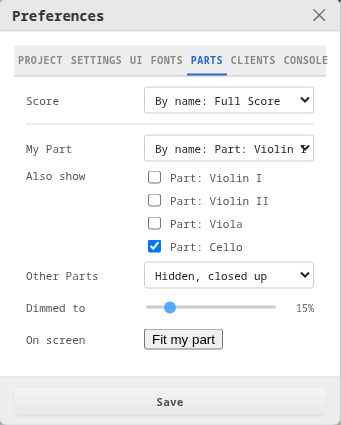
| Also show | More parts shown in full beside yours — e.g. Violin I with the Cello |
| Other Parts | Dimmed, or Hidden, closed up (see Two parts, no gap) |
| Dimmed to | Opacity slider (0–100%) for the parts not shown |
| On screen | Fit my part — zoom and centre your part (Shift+P) |
Changes apply immediately as a live preview. The setting is also saved when the Preferences dialog Save button is pressed.
Unlike the rest of the Preferences dialog, nothing in the Parts tab is saved to the project: it is stored in this browser only, and the tab says so. Each player sets their own view; choosing two parts on your tablet changes nobody else's.
Behaviour
- Selecting a part sets that layer to full opacity and all other part layers to the configured "Other Parts" opacity.
- When a part is selected, all part layers are forced to
display:inline, overriding any Inkscape visibility state. This ensures hidden layers become visible (at reduced opacity) so the performer sees the full score context. - Selecting "All (no filter)" restores all layers to their authored visibility and clears any opacity overrides. Like any choice by hand it stands: a conductor whose name happens to match a part keeps the whole score.
- Selecting "By name" hands the choice back to the client's name.
- The opacity slider at 0% fully hides other parts. At 100% all parts are equally visible (useful for rehearsal or conducting).
Storage
Layer filter preferences are stored in localStorage, keyed per project:
oscilla_layerFilter_<projectName>
This means each browser or device maintains its own part selection. A violinist's tablet remembers "Part: Violin" while the cellist's tablet remembers "Part: Cello", even when viewing the same score. The preference is not saved to preferences.json on the server and does not affect other connected clients.
Combining Both Approaches
A project can use both methods simultaneously. For example:
myProject/
├── score.svg                  # full score with all layers
│   ├── [layer] part-violin-I
│   ├── [layer] part-violin-II
│   ├── [layer] part-viola
│   └── [layer] shared
├── score-part-cello.svg       # cello has its own score entirely
├── score-conductor.svg        # conductor view with annotations
└── preferences.json
Here the string players share a layered score (each highlighting their own part), while the cellist and conductor each have dedicated score files.
The Parts tab in preferences adapts to what is available: if multiple score files exist, it shows the Score dropdown. If the currently loaded score contains layers with "part" in the name, it shows the layer filter controls. If both are present, both controls appear.
View Modes
The Default View setting in Preferences > Settings interacts with parts:
| Mode | Behaviour |
|---|---|
| hybrid (default) | Loads the selected score file for scrolling. Page navigation also available via cues or the mode toggle. |
| scroll | Same as hybrid. Score file is required. |
| page | Starts in page mode. If a score file exists, the mode toggle allows switching to scroll view. If no score*.svg files exist, pure page mode with no scroll option. |
In hybrid and scroll modes, the selected score file determines what scrolls. In page mode, score file selection is irrelevant unless the performer switches to scroll view.
Authoring Tips
- Include the word "part" in any layer name that should appear in the performer's dropdown (e.g. "Part: Violin I", "Electronics Part", "Percussion part"). The match is case-insensitive.
- Place shared notation (rehearsal marks, structural cues, tempo markings) on a layer whose name does not contain "part" — it will always remain visible regardless of the performer's selection.
- Layer ordering in Inkscape determines rendering order in the SVG. Place shared/background layers below part layers.
- Cue elements (animations, navigation, audio triggers) work normally regardless of layer filtering — opacity changes are purely visual.
- If a layer is hidden in Inkscape (
display:none), it will remain hidden until a performer actively selects a part, at which point all part layers become visible at their respective opacities. - The layer filter applies to scroll mode. Page mode loads individual SVG files which may have their own layer structure.
Project Structure Summary
myProject/
├── score.svg                  # main scrolling score (required for scroll/hybrid)
├── score-part-*.svg           # optional per-performer score files
├── preferences.json           # project settings
├── pages/                     # page-mode SVGs (optional)
│   ├── home.svg
│   └── section-a.svg
├── audio/                     # audio files (optional)
├── text/                      # text cue content (optional)
└── video/                     # video files (optional)
Quick Reference
| What you want | What to do |
|---|---|
| Different notation per instrument | Create separate score-part-*.svg files |
| Same notation, highlight own part | Use Inkscape layers with "part" in the name |
| Both | Combine: layers inside score files, plus separate files for very different parts |
| Shared elements visible to all | Put them on a layer without "part" in the name |
| Performer chooses their part | Each performer opens Preferences > Parts |
| Settings persist across sessions | Automatic — stored in browser localStorage |
| Settings sync across devices | They do not — each browser has its own selection, which is the intended behaviour |
Technical Details
The layer filter is implemented in layerFilter.js with integration points in projectLoader.js (layer scanning on score load) and oscillaPreferences.js (UI section in preferences dialog).
Layer detection uses both namespace-aware attribute access (getAttributeNS) and a plain attribute fallback (getAttribute("inkscape:groupmode")) to handle differences in how browsers resolve XML namespaces when SVG is embedded in an HTML document.
Two parts, no gap
Tick other parts under Also show and they are shown in full beside yours. With Other Parts → Hidden, closed up, everything else is hidden and the parts you show are moved together, so Violin I and the Cello sit one under the other with no empty lanes between them — then fitted on screen.
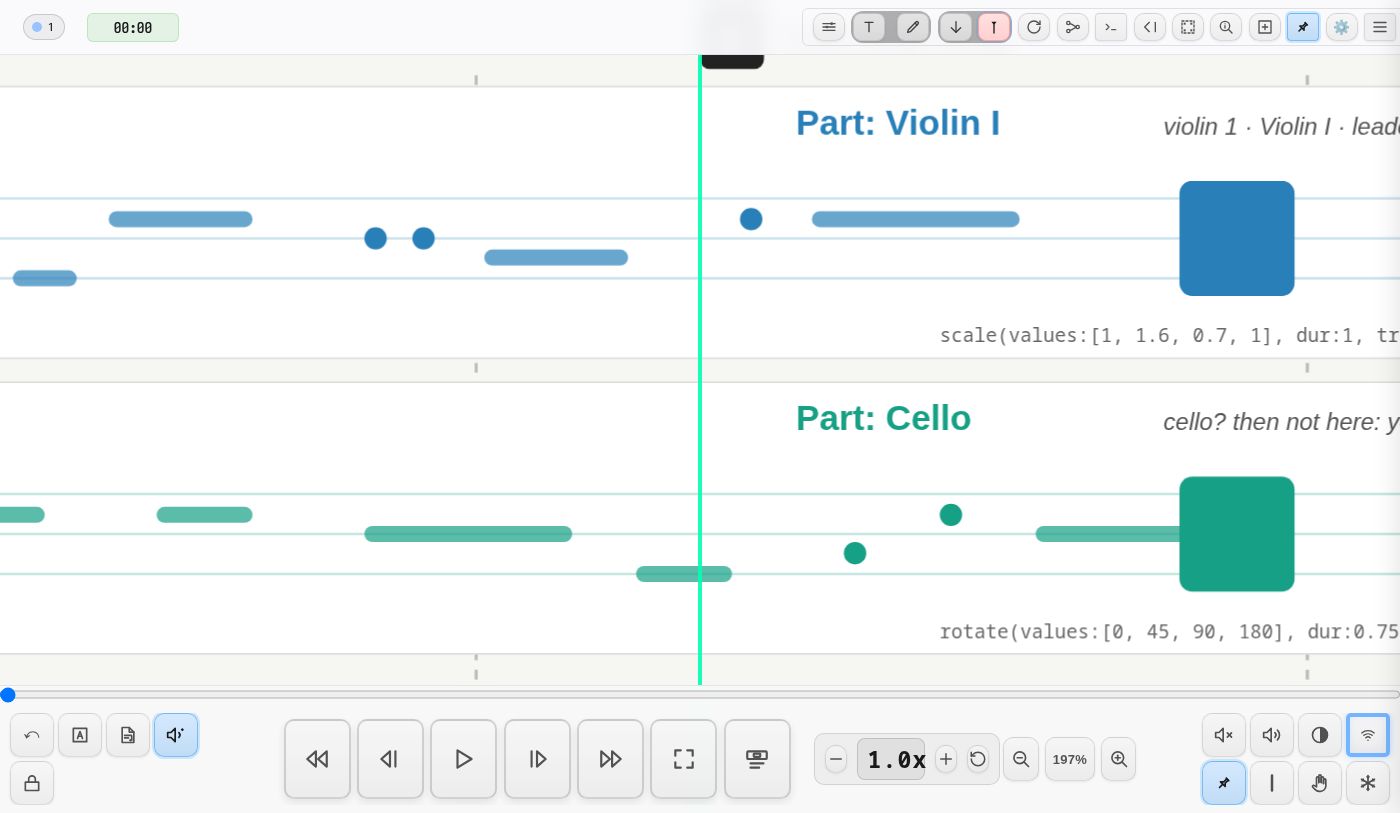
- The hidden parts are not removed: they keep their place and their cues keep firing — they just cannot be seen or clicked.
- Only the gaps are taken out. Parts that sit close together, or overlap, as drawn stay as they are; the order never changes.
- Things on a shared layer (barlines, rehearsal marks) do not move. Put a part's own background or staff on the part's layer, so it moves and hides with the part.
- It moves the layers on screen only — the SVG file is never changed — and goes back the moment you choose Dimmed or All.
Fit my part
Once a part is chosen, Oscilla can put it — with any parts shown beside it — in front of you: Preferences → Parts → Fit my part, or press Shift+P. The score zooms so your layer fills the band between the top bar and the transport and pans so it sits centred — choosing a part in the dialog does this automatically. Like every zoom and pan, it is a view setting local to your device; the other players see nothing change, and the playhead stays exactly where the transport says it is. Pinch and two-finger drag adjust from there.
Your view is remembered per project on this device: reload the page and it comes back at the same zoom, on the same area of the score. The fit only runs by itself on a first visit, or when your part changes.
The score overview
Zoomed in on your part, press W, tap the overview button in the
transport bar (beside Fullscreen), or set Score Overview in the
preferences, for a live strip across the top of the screen showing the whole
score: every part at fit scale, following the playhead, with a rectangle
showing what your main view covers. It is the same score, not a copy —
by default it is a still copy of the score as authored, which costs almost
nothing; tick Score Overview shows animations in the preferences to see the
animations and part dimming live in it too — at a price on a score heavy
with animation, and a stutter each time a cluster of them starts, so leave
it off for such scores.
Drag the view rectangle to move through the score — along the score that
is a seek, shared with the room like the seek bar, held while you drag;
up or down it is your own view — or click anywhere in it to jump there; in vertical scrolling the strip runs down the right-hand
side instead. Whether it is showing is remembered per project on this device,
like the zoom. A score can show it itself with
ui(target:"#score-overview", action:toggle).
Part follows your name
A client already has a name (see Clients). If no part has been chosen by hand, Oscilla chooses one from that name, so a tablet named for its player opens on that player's part with nothing to click — and fits it on screen. Three sources, first match wins:
?part=on the URL —?project=quartet&part=Part:%20Violin%20I, for fixed kiosk tablets; a layer id or label, matched loosely.partsByClientinpreferences.json— for names that don't resemble the labels:"partsByClient": { "rob": "Part: Violin I", "conductor": "Part: Full" }- The name against the layer labels — case-insensitive, punctuation and the word part ignored, roman numerals read as digits: a client called violin 1 gets the layer Part: Violin I; cello* (the default hear-everything suffix) gets part-cello.
The same matching chooses a separate score file when the project has them:
violin 1 loads score-part-violin.svg. A part or file chosen by hand in
the Parts tab always stands; only a choice Oscilla made from the name is
replaced when the name changes. A rename that picks a different file reloads
the score with it at once; By name in the Parts tab hands a choice made by
hand back to the name.
Links: one page for the whole group
With a large group, nobody should have to open a menu. Put a link per part
in the score and each player taps theirs. The easiest is a
url() cue on a box or a word — url(role:viola) —
which you edit in the cue editor like any other; a link drawn in Inkscape
(Object → Link) works too. Either way it is an address like these:
| Link | What it does |
|---|---|
?project=quartet&role=viola |
names this device viola; the part follows the name |
?project=quartet&part=Part:%20Viola |
picks the part directly, whatever the name |
?project=quartet&role=conductor&part=all |
a name, and the whole score with no part |
A link is the newest choice there is: the first time a device opens one, any
part or score file chosen there by hand is let go. Choices made afterwards in
the Parts tab stand again. A link can sit anywhere — on the score's first
page, on a page of its own, or as one QR code per
part (Menu → Share project link gives the project's address to start
from). The name from ?role= lasts as long as it is in the address — it
is not stored, so the device's own name returns without it. demo-parts opens
with such a row of buttons.
The matching is loose but not clever: violin ii finds Part: Violin II,
but 2nd violin finds nothing. Give such names an entry in partsByClient.
Tip: use ← → or ↑ ↓ to navigate the docs