
Workflow
This page describes the current OscillaScore workflow, including creating, loading, saving, and sharing projects. It reflects the newer project lifecycle tools available from the UI (New Project, Save As, Import / Export).
The core idea remains the same: draw in Inkscape, perform in the browser, but project management is now handled explicitly by Oscilla.
1. Projects and Project Structure
Your projects live in a dedicated folder outside the Oscilla installation:
~/oscilla-projects/
(override the location with the OSCILLA_PROJECTS_DIR environment variable —
the default is cross-platform: C:\Users\you\oscilla-projects on Windows,
/Users/you/oscilla-projects on macOS). Nothing is created behind your back:
the first time the server starts, the server console asks where your
projects should live — point it at a folder of Oscilla projects you already
have, choose a place for new ones, or accept the default with one click. The
choice is remembered and can be changed in the console any time.
The shipped demos live inside the app itself (public/scores/) and are
read-only in spirit — your own work never mixes with the software tree, so
upgrading or version-controlling Oscilla can't touch your scores.
The server serves both locations transparently: any folder you drop into
~/oscilla-projects/ is immediately a first-class project — it appears in
the menus, loads by name, and every connected client can open it, which
is what makes multi-client performance work.
Each project is a self-contained folder. At minimum, a project contains:
myProject/
└── score.svg
This is enough for a project to load and run.
A typical project created by Oscilla looks like:
myProject/
├── score.svg                # main scrolling or hybrid score
├── preferences.json         # project preferences (auto-generated)
├── pages/                   # optional page-mode SVGs
├── audio/                   # optional local audio files
├── text/                    # optional external text cues
└── video/                   # optional local video files
You normally do not create this structure by hand anymore — Oscilla does it for you.
2. Creating a New Project
Recommended method (UI)
- Open Oscilla in your browser:
http://localhost:8001
- Open the hamburger menu (top-right)
- Choose:
File → New Project…
- Enter a project name
Oscilla will:
- create a new project folder inside
~/oscilla-projects/ - copy the project template (including
score.svgand helper files) - load the project automatically
After creation, Oscilla shows a short hint explaining where the score file lives on disk and that it should be edited in Inkscape.
3. Editing the Score in Inkscape
Oscilla does not provide a built-in score editor. Inkscape is the primary authoring tool.
- Open Inkscape
- Open:
~/oscilla-projects/myProject/score.svg
- Draw shapes, text, paths, and layout the score visually
- Save the file
Refresh the browser and the changes appear immediately.
Grids
A new project's score.svg comes with grids on locked layers, to draw
against; pick one (or several, or none) by showing or hiding its layer in
Inkscape's Layers dialog (Shift+Ctrl+L):
- Grid: fine / medium / coarse — square grids of three densities; medium is the one shown.
- Grid: halves / thirds / quarters — the height in 2, 3 or 4 bands, for lanes, cut into square cells.
- Grid: seconds (10 min) — a line a second, for the length a new project has before you set its duration.
- Grid: staves — four five-line staves across the score.
Draw on the Score layer. A hidden grid stays hidden in performance.
Page size conventions
Oscilla expects specific page dimensions depending on score type:
| Score Type | Width | Height | Use Case |
|---|---|---|---|
| Scrolling | ~40000px | 1024px | Continuous horizontal scores |
| Paged | 1366px | 1024px | Discrete pages (tablet-friendly) |
Set this in Inkscape via:
File → Document Properties → Page Size
Notes:
- 1024px height is optimized for tablet landscape display
- For scrolling scores, width directly affects playback duration
- Playback speed can be adjusted in
preferences.json
4. Adding Behaviour (CueDSL)
Behaviour is encoded as CueDSL — a compact expression syntax stored in SVG element attributes. For example:
rotate(dur:2, uid:myShape, trig:auto)— continuous rotationaudio(src:audio/intro.flac, uid:theme, trig:auto)— triggered audiopause(dur:12, count:true)— score pause with countdownscale(values:[0.5,1.5], dur:1, uid:s1)— scale animation
There are two ways to author cues:
Method 1: the DSL editor (recommended — no Inkscape required)
Oscilla has its own cue editor, in the browser, over the running score:
- Click the ✏ pencil in the top bar (or press I). Hovering an element now shows its cue.
- Click an element. One with a cue opens the editor on it; a plain one opens Add cue — pick a cue type from the list.
- Fill in the fields. The chips above a field give a working value in one click — a note name, a chord, a pattern, a list of waypoints — and Add param adds any parameter the cue can take. The preview at the bottom shows the cue as it will be saved.
- Click Save to SVG. The change is written to
score.svgand takes effect at once — no Inkscape round-trip, no reload.
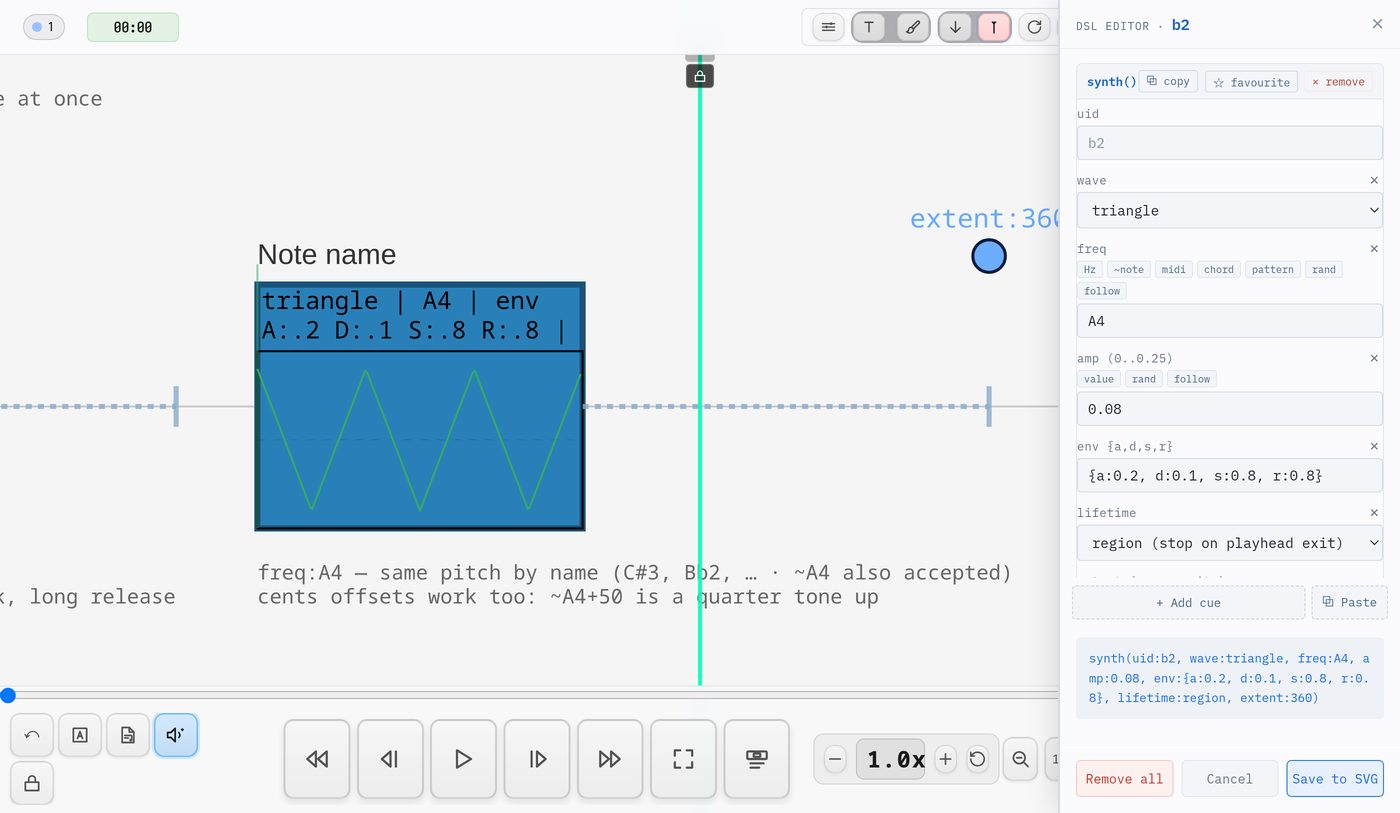
+ Add cue gives an element a second (or third) cue — each gets its own
wrapper <g> so animations do not conflict. Everything else — favourites,
picking waypoints and paths on the score, uploading audio — is in the
DSL editor guide.
Method 2: Inkscape XML Editor
For fine-grained SVG control or when the inspector is not available:
- Open
score.svgin Inkscape - Select an element and open the XML editor: Ctrl + Shift + X
- Set the
data-oscillaattribute to a cue expression - Save and refresh the browser
You can also type a cue expression straight into the element's id field
(the object properties dialog — no XML editor needed). This is the quickest
route in Inkscape, but ids with spaces and parentheses are not valid SVG.
Oscilla reads them fine, and when it finds them in one of your projects it
offers a one-click Normalize (a notice appears after loading): each
cue's DSL moves into data-oscilla and the element gets a plain id (its
uid:). Behaviour is identical before and after; a version snapshot is
saved first, and if the score is open in Inkscape at the time, do
File → Revert there afterwards.
You can mix both approaches freely — the inspector and Inkscape edit the same score.svg file.
5. Opening and Switching Projects
Everything opens by name — Oscilla finds the project whether it lives in
~/oscilla-projects/ or is a shipped demo.
From the splash screen
Visit http://localhost:8001 and use the four buttons:
- New — create a project
- Open — your projects (most recently used first)
- Demos — the shipped demo scores
- Help — this documentation
From the menu (while a project is loaded)
- Projects — your projects, recently worked-on first
- Demos — all shipped demos
- File → Open… — the same as the splash screen's Open
Direct URL
http://localhost:8001/?project=myProject
Useful for bookmarks, tablets, and connecting performers straight to a score.
6. Saving and Duplicating Projects
Duplicate Project
Menu → File → Duplicate Project… copies the current project into your projects folder under a new name, and opens the copy. The original is left exactly as it was — Oscilla saves every change as you make it, so there is nothing unsaved to "save as".
Use it to:
- make a demo your own. A demo's files are Oscilla's own: in the desktop
app they live in the installation, and an update replaces them — edits made
to a demo are lost. Opening a demo shows a notice with a Duplicate…
button for this; the copy is suggested without the
demo-prefix (names starting withdemo-are kept for the demos). - branch a piece — a version B, a version for another ensemble, a copy to
try something drastic on. (Score Versions only rolls back
score.svg; a duplicate keeps everything — pages, audio, texts, preferences.)
The copy starts with a clean history: it leaves out version snapshots and
hidden files such as a .git repository, as an export does.
7. Exporting and Importing Projects (.oscilla)
A .oscilla file is a whole project in one file — a zip — for sending to a
collaborator or archiving.
Export
Menu → File → Export Project (.oscilla)… downloads <project>.oscilla, with
everything the project needs: score.svg and any other score files,
preferences.json, pages, audio, texts, video, images, annotations.
It leaves out the project's private history: version snapshots
(versions/), hidden files and folders (.git, .DS_Store, editor
settings) and audio-migration backups. A project kept under git exports
without its repository.
Import
Menu → File → Import Project (.oscilla)…, or Import… on the splash screen:
- choose the file (
.oscilla, or a.zipof a project folder) - give it a new project name — a name already in use, a demo's included, is refused
- it is unpacked into
~/oscilla-projects/and opens
A project with a score.svg, or a page-only project with only pages/,
imports; a zip that is neither is refused and leaves nothing behind.
Nothing in a file can write outside the new project's folder.
8. Iteration Loop (Typical Use)
With the DSL Inspector (fast):
- Enable the inspector (✏ in the top bar)
- Click an element to edit or add cues
- Adjust parameters in the panel — the preview updates live
- Click Save to SVG — the animation restarts immediately
No Inkscape, no page reload.
With Inkscape (for layout and drawing):
- Edit
score.svgin Inkscape (shapes, layout, paths) - Save
- The browser reloads automatically (file watcher)
- Switch back to the inspector to wire up cues
Both loops can run in parallel — use Inkscape for visual design, the inspector for cue logic.
Oscilla never locks files — the filesystem is always the source of truth.
9. Rehearsal and Performance
For rehearsal and performance:
- open the same project on all devices (by name or direct URL)
- use cues for timing and navigation
- optionally synchronize multiple clients
Each performer reads from the same authored score, rendered locally in their
browser. Because the server serves ~/oscilla-projects/ directly, a score
you edit on the host machine — in Inkscape or the DSL editor — is what every
connected client sees, with no publish or copy step.
Summary
- Projects are folders in
~/oscilla-projects/, not opaque files — outside the app, easy to back up and version - The DSL Inspector (browser, ✏) is the fastest way to add and edit cue behaviour
- Inkscape handles visual layout and drawing; cues can be set there too
- Oscilla handles loading, duplication, import/export, and playback
.oscillafiles are for sharing and archiving, not daily editing
This separation keeps the system transparent, hackable, and robust.
Touch gestures
On a touchscreen the score itself is the transport. Double-tap (double-click with a mouse) by screen region — the same map on every device:
| region of the screen | double-tap |
|---|---|
| top sixth | show the top bar |
| middle band, left tenth | previous rehearsal mark |
| middle band, right tenth | next rehearsal mark |
| middle band, the rest | play / pause |
| bottom sixth | show the transport controls |
Drag left or right to scrub, with momentum. Pinch to zoom in on your part and drag with two fingers to move it up or down the screen — both are local to your device and never reach the other players, because zoom is a view setting, not a transport one. With Single-finger pan when zoomed on in the preferences, a single finger dragged up or down also pans once the score is zoomed past fit; it is off by default so it can never compete with a fader or a drag object.
With a mouse or touchpad: the wheel scrubs; Ctrl/⌘ + wheel — or a touchpad pinch — zooms the score about the cursor; shift + wheel pans; and the middle button drags the score up or down. Panning works at any zoom and goes past the edges of the window on purpose — a quarter of the score always stays on screen, the rest may be pushed off — so the top of a score can be brought down clear of the overview strip, or the bottom up clear of the transport, with no margin drawn into the score. All of it is local to your device, like the touch gestures.
Press Z to draw the zones over
the score with labels; the Transport demo opens with them showing (the
showGestureZones project preference), and its gesture zones button is
authored in the score itself:
button(label:"gesture zones", trigger:ui(target:"#gesture-zones-overlay", action:toggle), uid:gzBtn, style(size:"160x34", color:"#3a5570", textcolor:"#ffffff", fontsize:14))
ui(target:…, action:toggle) shows or hides any element the selector matches
— score or interface — so a score can carry its own controls for the app.
Zooming the score
] makes the score bigger, [ smaller, \ puts it back to fit. The same three
are in the top bar as a magnifier pair with the current percentage between them;
clicking the percentage goes back to fit. Only the score
scales — the top bar, panels and dialogs stay the size they were, which is the
difference from the browser's own zoom.
Zoom is local to one machine and one project. It is not sent to the server and it does not disturb the ensemble: the playhead, the drift correction and every cue trigger work in the score's own coordinates, so a tablet at 200% and a laptop at 100% stay sample-accurate with each other. Each performer sets the size they can read from where they sit. The setting is remembered per project, so a score you always want large stays large.
Zoomed past the fit size the score is taller than the screen (or wider, in a vertical score). It is centred, and Shift + scroll wheel moves it up and down to reach the top or bottom staves. Plain scrolling still seeks the playhead.
Behind other windows
Oscilla keeps time when its window is hidden. Browsers stop drawing and
slow their timers to once a second for a page that is minimised, behind
another tab, or — on Windows and macOS — fully covered by another window;
Oscilla then drives its playhead, animations, cue triggers and OSC/MIDI from
a background worker clock instead, so a Max, Pd or Reaper window on top of
the score costs nothing. The desktop app additionally opts its windows out
of that throttling altogether. Video playback and the follow:1 overlay are
the exceptions: they resume when the window is visible again.
Tip: use ← → or ↑ ↓ to navigate the docs