
Audio Objects
Overview
Audio Objects are executable sound elements placed directly onto the score surface in the browser. They provide the same audio capabilities as the SVG/DSL audio(), audioPool(), and audioImpulse() cues, but are authored live during rehearsal or performance rather than composed offline in Inkscape.
Audio Objects exist on the Contribution Surface alongside text annotations. They can be:
- clicked to trigger playback
- triggered automatically by the playhead
- shared across connected performers
- configured with full parameter control (gain, pan, pitch, fade, loop, randomisation)
- displayed as interactive waveform canvases, compact handles, or hidden triggers
No SVG score is required. Audio Objects can function as a standalone spatial trigger surface.
Entering Audio Object Mode
- Click the speaker icon in the toolbar (or use the keyboard shortcut)
- The cursor changes to indicate audio placement mode
- Click anywhere on the score area to place a new audio object
- The editor dialog opens for configuration
Audio object mode and annotation mode are mutually exclusive -- entering one exits the other.
Creating an Audio Object
When you click the score in audio object mode:
- The audio object editor opens with three tabs: Source, Playback, and Impulse
- Configure the source, type, and playback parameters
- Click Save
The object appears on the score as a pin with a label. Depending on the display mode, it may also show a waveform canvas.
Audio Types
Audio (Single File)
Plays one audio file. The file path is relative to the project's audio/ directory. The .wav extension is added automatically if omitted.
Typical uses: one-shot samples, looping drones, pitched material.
Audio Pool (Directory)
Plays one file chosen from a directory each time it is triggered.
Selection modes:
- shuffle -- randomised order with no immediate repeats
- sequential -- plays files in alphabetical order
- random -- fully random (repeats possible)
Each trigger picks the next file from the pool. Multiple rapid clicks produce overlapping voices up to the polyphony limit.
Typical uses: drum kits, texture clouds, aleatoric material.
Audio Impulse (Continuous)
Starts a continuous stochastic playback process from a directory of samples.
Impulse-specific parameters:
- Rate -- events per second (1--60)
- Jitter -- timing randomness (0--1)
Click once to start, click again to stop (toggle mode). Visual feedback: the pin border turns green while running.
Typical uses: granular textures, stochastic rhythms, ambient layers.
Synth (Web Audio)
Creates a Web Audio synthesiser voice with configurable waveform, pitch patterns, and effects. No audio files required.
Synth-specific parameters:
- Waveform -- sine, square, saw, triangle, noise
- Frequency -- Hz value, note name (e.g., A4), or pattern
- Pattern -- sequence type (Pseq, Prand, Pxrand, Pshuf)
- Duration -- step timing for patterns
- ADSR Envelope -- attack, decay, sustain, release
- Filter -- lowpass/highpass with cutoff and resonance
- Delay/Reverb -- built-in effects
Synth audio objects display with type-based colors:
- Cyan -- single tone
- Purple -- chord (multiple frequencies)
- Orange -- sequence pattern
Typical uses: reference tones, drones, patterned textures, real-time controllable sounds.
Playback Parameters
All audio types share a common set of playback controls:
| Parameter | Range | Default | Description |
|---|---|---|---|
| Gain | 0--2 | 1 | Output amplitude |
| Pan | -1 to 1 | 0 | Stereo position (left to right) |
| Pitch | 0.5--2 | 1x | Playback rate multiplier |
| Fade In | 0--5s | 0 | Attack envelope |
| Fade Out | 0--5s | 0 | Release envelope |
| Loop | 0+ | 1 | Repeat count (0 = infinite) |
| Toggle | on/off | off | Second click stops instead of retriggering |
| Order | shuffle/sequential/random | shuffle | Pool selection mode |
Randomisation & Polyphony
Available for Audio Pool and Audio Impulse types:
| Parameter | Range | Default | Description |
|---|---|---|---|
| Polyphony | 1--16 | 6 | Maximum simultaneous voices |
| Pan Random | 0--1 | 0 | Per-hit stereo spread |
| Pitch Random | 0--1 | 0 | Per-hit pitch deviation |
When polyphony is exceeded, the oldest voice is stopped with a short fade to make room for the new one.
Display Modes
Each audio object can be displayed in one of three modes:
Waveform
Shows an interactive canvas with the audio file's waveform. Features:
- draggable in/out point handles to define a playback region
- playback cursors that sweep across during playback, synced to the audio clock
- colored peak layers for pool/impulse modes (each voice gets a distinct color)
- preview layers showing up to 5 pool files as ghost waveforms when idle
- configurable height (40--300px)
Handle
Shows the label and extent region but no waveform canvas. Compact footprint for dense layouts. Playback feedback is still visible via the text overlay and pin outline.
Hidden
No visible element on the score (useful for playhead-triggered background layers). The object is still visible and editable when audio object mode is active.
Text Overlay
During playback, a text overlay appears above the pin showing all active parameters:
kick.wav | amp:0.8 | pan:-0.3 | speed:1 | loop:1 | fadeIn:0s | fadeOut:0.5s | toggle:off
For pool and impulse types, additional fields appear (poly, panRand, pitchRand, rate, jitter). The overlay wraps to stay within the pin's bounding box.
Spatial Trigger Regions
Every audio object defines a horizontal region on the score via an extent handle on its right edge.
- Drag the extent handle to resize the region
- The region determines the object's active x-range for playhead triggering
- Waveform display stretches to fill the region width
Playhead Triggering
Audio objects can be triggered automatically when the score playhead enters their extent region.
To enable:
- Open the editor
- Check Trigger on Playhead Enter in the Playback tab
- Save
Behaviour:
- The playhead enters the region: audio starts
- The playhead exits the region: audio stops with the configured fade-out
- If fade-out is configured, the fade begins early so it completes exactly at the region boundary
Impulse Lifespan Modes
When using Audio Impulse with playhead triggering, three lifespan modes are available:
- Toggle -- manual start/stop via click
- Gate -- active only while the playhead is inside the region
- Fixed -- runs for a specified duration then stops automatically
Audio File Management
Browsing
The Browse button in the editor opens a directory navigator for the project's audio folder. Click a file to select it as the source path. Click a directory to navigate into it (useful for pool/impulse sources).
Uploading
Drag a file onto the upload zone or click Upload to add audio files to the project. Uploaded files are placed in the project's audio directory.
Recording
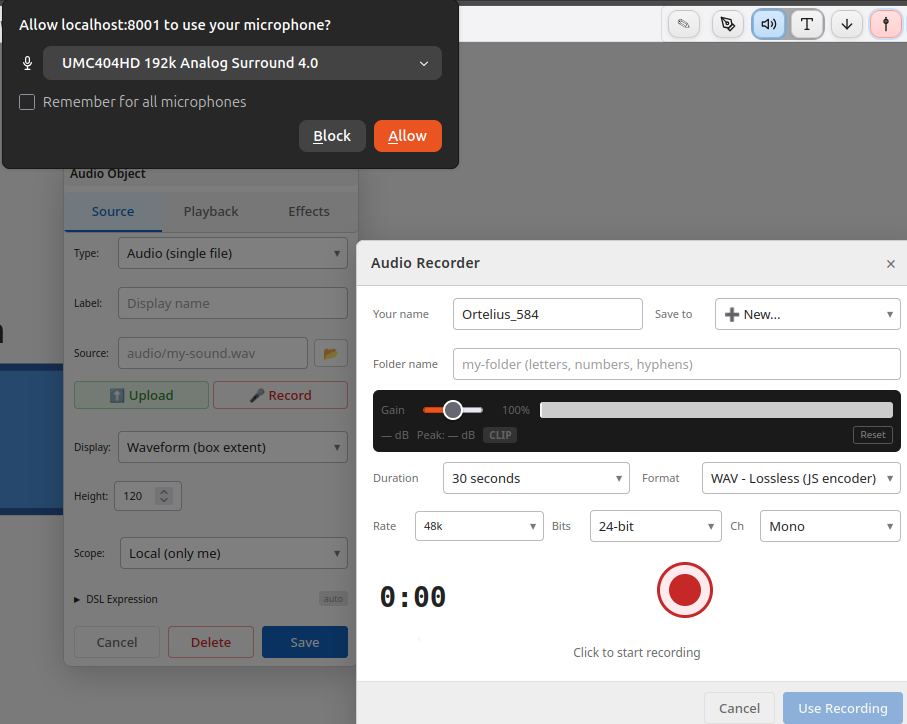
The Record button opens the Audio Recorder dialog for in-browser recording.
Recording workflow:
- Click Record in the audio object editor
- Browser requests microphone permission (grant access)
- Set input levels using the VU meter
- Click the record button to start (with optional countdown)
- Click again to stop recording
- Preview your recording before saving
- Recording is saved to the project's audio directory
The recorder automatically uses your client name if set. Recordings can be immediately assigned to the audio object.
Editing
- Audio object mode must be active to open the editor
- Click an existing audio object (pin or label) to reopen its editor
- Changes take effect immediately on save
- The waveform and playback parameters update without reloading
Moving
Audio objects are draggable in all modes (not just edit mode):
- Click and drag the pin or label to reposition
- Position is saved automatically on release
- The pin's x-position determines its timing relative to the playhead
Triggering, Pausing, and Stopping
When not in audio object edit mode, audio objects respond to touch/click gestures:
| Gesture | Action |
|---|---|
| Single click | Pause (if playing) / Resume (if paused) / Trigger (if stopped) |
| Double click | Stop playback immediately (with configured fade-out) |
Pause and Resume
For audio and audioPool types, single-clicking a playing audio object pauses playback:
- The audio stops immediately
- The waveform cursor freezes at its current position
- Clicking again resumes from the pause point
Scrubbing While Paused
When paused, you can drag the waveform cursor to a new position:
- Pause the audio with a single click
- Grab the cursor (a wide invisible hit zone makes this easy)
- Drag left or right to the desired position
- Click again to resume from the new position
This allows precise positioning within the audio file without restarting from the beginning.
Stopping
Double-click to stop playback completely. The cursor resets to the start position immediately, and the audio fades out using the configured fade-out duration.
The stop gesture works on any stoppable audio type (audio, audioPool, audioImpulse, synth).
Clicks anywhere on the audio object work -- the pin, label, extent handle, waveform, or any part of the bounding region.
Targeted Triggering
When an audio object's scope is shared, triggering it normally plays the sound on all connected clients. However, you can target specific clients instead using the client selection feature:
- Select target clients -- Click the colored client squares in the top-left client list. Selected clients show a green checkmark.
- Trigger the audio object -- The trigger (and any randomised parameters like file selection, pan, pitch) is sent only to the selected clients.
- Clear selection -- Click selected clients again to deselect them. When no clients are selected, triggers revert to broadcasting to all.
This enables conductor-style workflows where one performer can send audio triggers to specific ensemble members. The selection persists until cleared -- multiple triggers go to the same targets.
Stopping a shared audio object (via double-click) also respects the current target selection.
Scope
Each audio object can be:
- Local -- stored on your device only, invisible to other performers
- Shared -- synchronised to all connected clients via WebSocket
Scope is set in the editor and can be changed at any time.
Persistence
Audio objects are saved to audio-objects.json in the project folder via the server REST API. They persist across browser sessions, page reloads, and project renames. Shared objects are also distributed to other connected clients in real-time via WebSocket.
When scope is shared, clicking an audio object triggers playback on all connected clients simultaneously.
Relationship to SVG Audio Cues
| SVG Audio Cues | Audio Objects |
|---|---|
| Authored in Inkscape | Authored in browser |
| Embedded in SVG element IDs | Stored in server file / synced via WebSocket |
| Parsed by DSL engine | Configured via GUI editor, serialized to DSL |
| Fixed at composition time | Mutable during performance |
| Waveform in SVG polylines | Waveform in SVG polylines (same engine) |
Both systems use the same audio engine (handleAudioCue, handleAudioImpulseCue) and dispatch the same oscilla:audio events. They can coexist on the same score.
Tip: use ← → or ↑ ↓ to navigate the docs